Plan the week around fixed slots
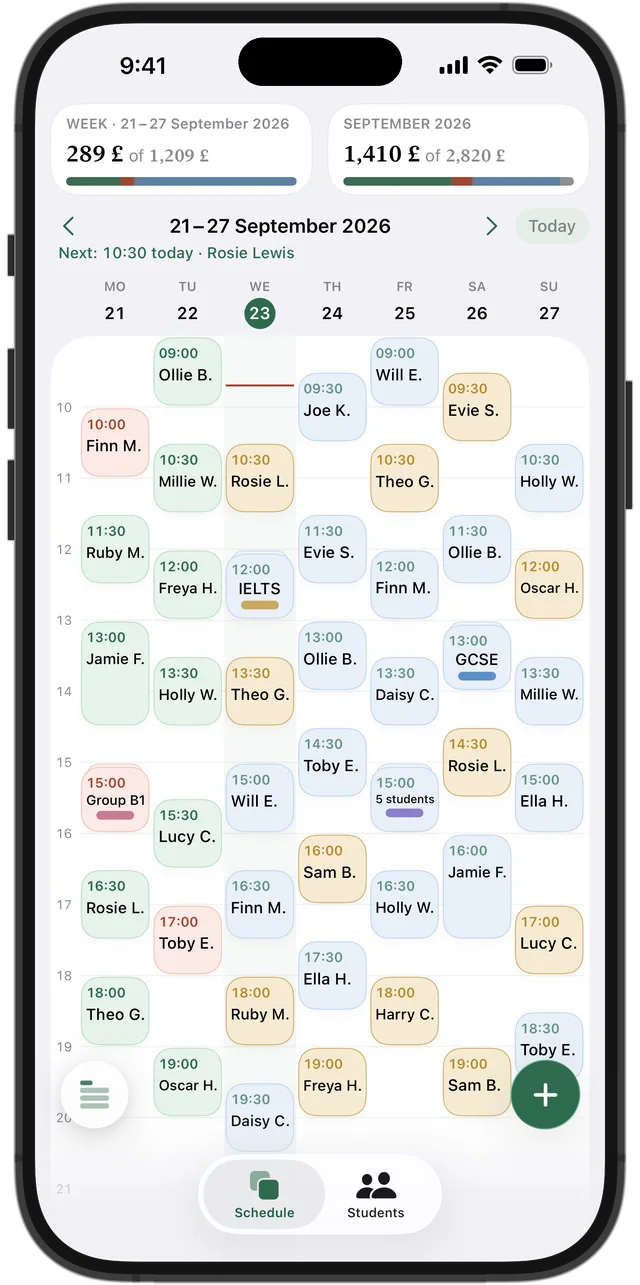
Give each regular student a fixed day and time and treat it as theirs until something changes. Fixed slots make your week predictable for you, for students and for parents juggling school runs and after-school clubs.
Leave a little room: a free hour or two in the week makes it far easier to move a lesson when someone is ill, without cancelling it.
Students who come several times a week
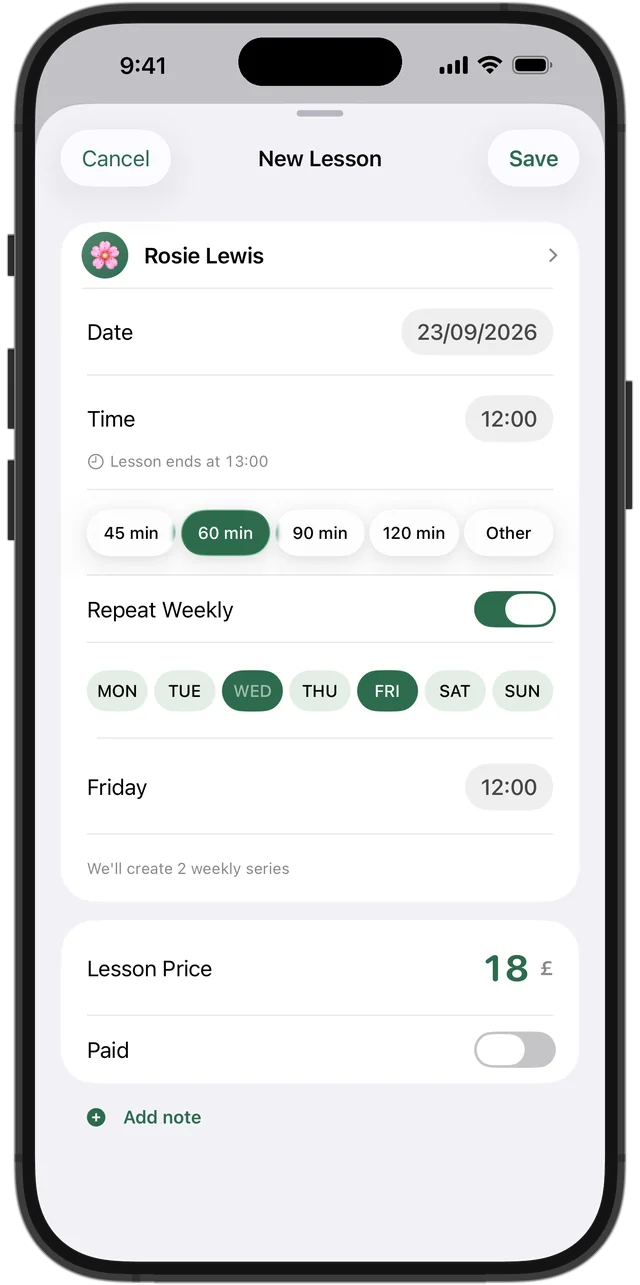
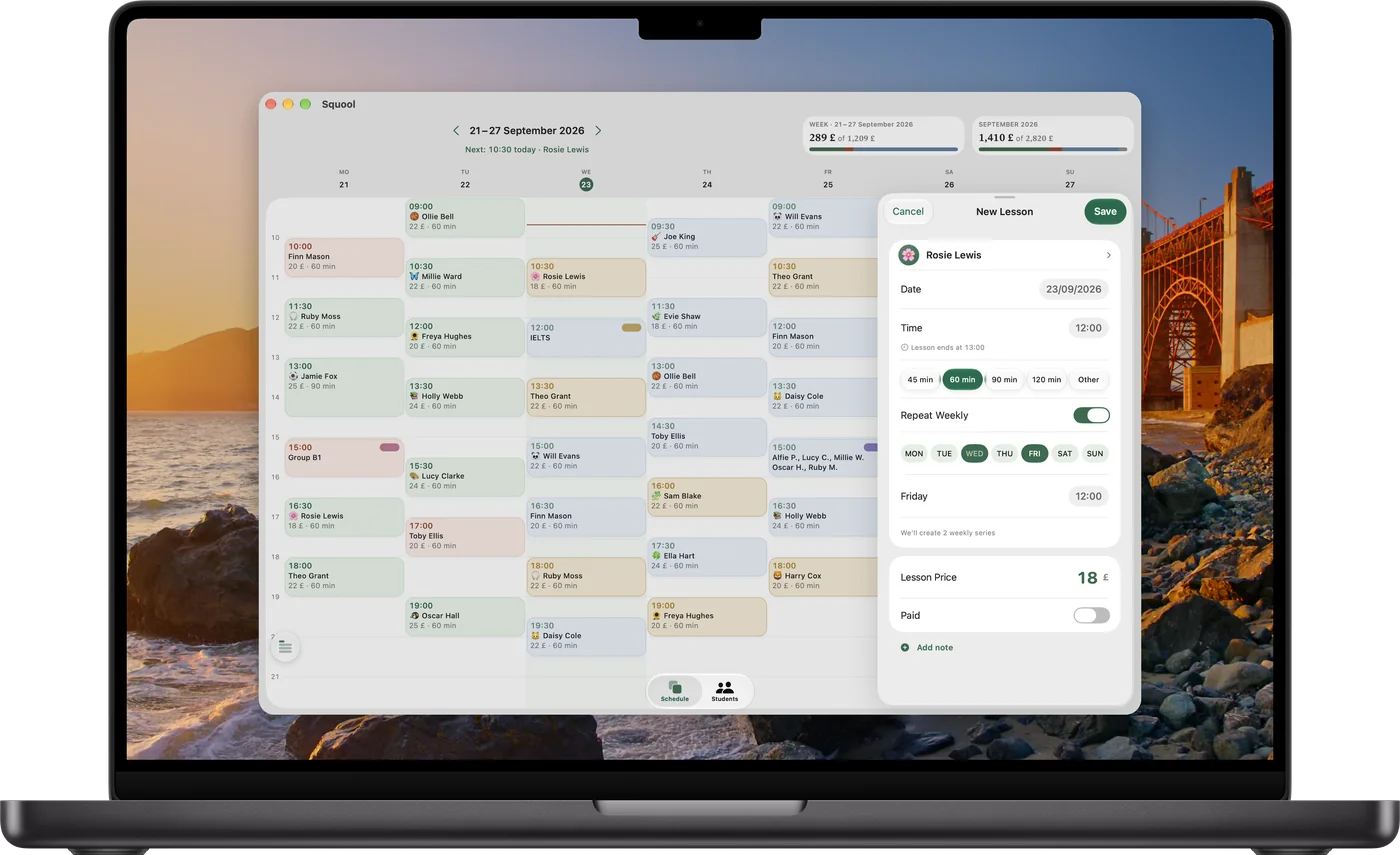
A student who comes on Monday at 4pm and Thursday at 6pm has one weekly series with two days, not two unrelated lessons. Think of it that way in any planner: when the price or the student changes, you change it once.
In Squool, open a new lesson, turn on ‘Repeat Weekly’, pick several days of the week and set a separate time for each. From then on the lessons appear in your timetable every week by themselves.
Try it free for 14 days · No card required. Subscribe only once the app has proven it's worth it to you.
Download on the App StoreMoving one lesson vs changing all future ones
A one-off change – this Thursday moves to Friday because of parents' evening – should affect only that date. A permanent change – from next term, Thursdays at 5pm – should affect every lesson from that date on, and leave the past untouched.
When you edit a lesson that belongs to a series, Squool asks whether to change ‘This One’ or ‘This & Future’. The same choice works for time, length and price.
Raising your prices for the new school year
Many UK tutors review their rates once a year, for September. Announce the new price before the summer holidays and apply it from a specific date. Lessons a student has already paid for should keep the price they were paid at – that's fair, and it keeps balances correct.
In Squool, changing the price with ‘This & Future’ applies it to upcoming lessons, and paid lessons keep the old price. If the student has several weekly days, the app asks whether to change one day or all of them.
Ending a series when a student stops
When a student leaves – after their GCSEs, say – end their series from a chosen date rather than deleting the student. Past lessons and payments stay in the history, and the future slots become free.
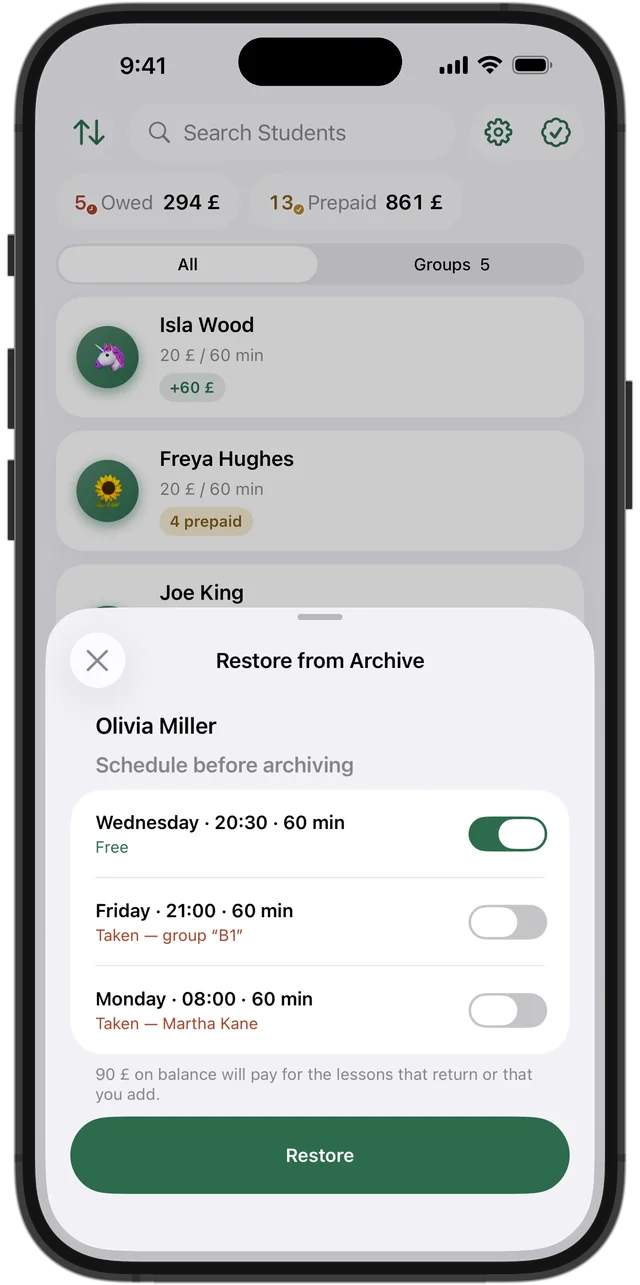
Squool lets you cancel or delete a series from a given date, or archive the student entirely. Archiving returns any prepaid money to the student's balance, and if they come back later, you choose which of their old weekly days are still free.
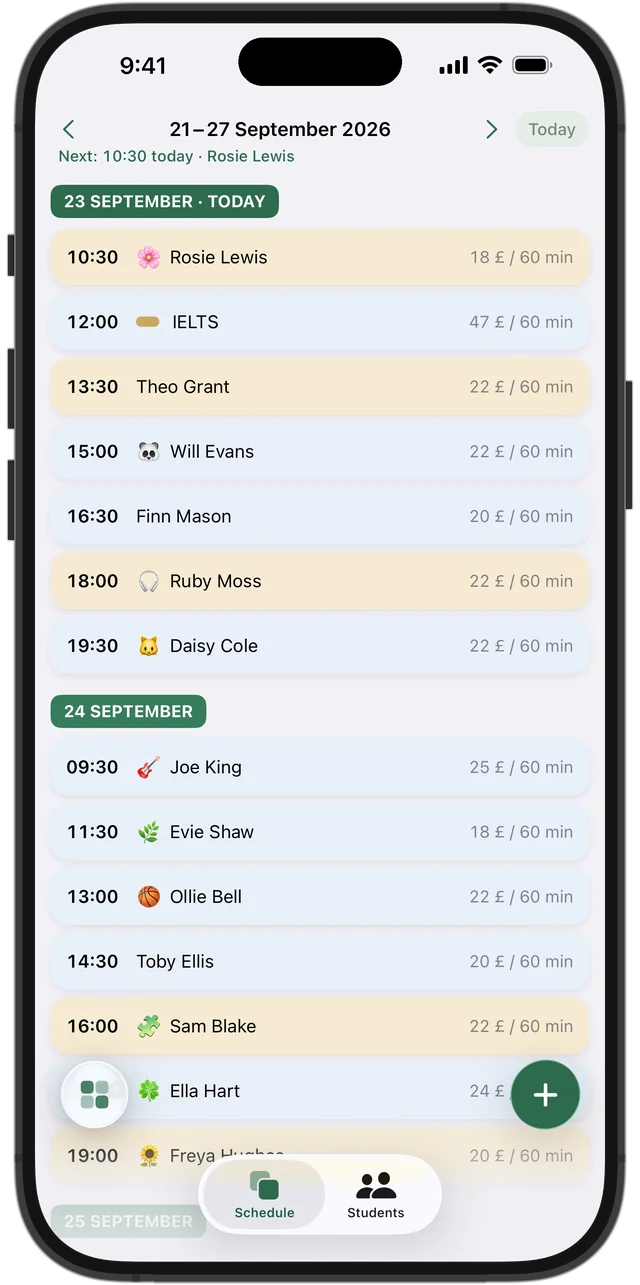
Your timetable on every device
The timetable shows as a week grid or as a list of days, with each lesson's colour showing whether it's paid, owed, prepaid or upcoming. Tap an empty hour to add a lesson, and get a notification before each one.
Squool works on iPhone, iPad, Mac and Apple Watch and syncs through your own iCloud. Your data stays on your device and in your iCloud. 14 days free, no card required.
Questions and answers
How do I set up recurring weekly tutoring lessons?
Create the lesson once and turn on weekly repeat. In Squool that's ‘Repeat Weekly’, and you can pick several weekdays, each with its own time.
How do I reschedule one lesson without changing the whole series?
Edit just that date. In Squool choose ‘This One’ when saving, and the rest of the series stays as it was.
Can a student have lessons twice a week at different times?
Yes. In Squool one weekly series can include several days, each with its own start time.
What happens to prepaid lessons if I put my prices up?
In Squool lessons that are already paid keep the old price; the new price applies to upcoming unpaid lessons.
How do I stop a recurring lesson when a student finishes?
End the series from a chosen date or archive the student. Their past lessons and payments stay in the history.
Read also
Holidays & pause
What to do with weekly lessons and prepaid money over half-term, the summer holidays or a student's break: a simple policy and how to pause, not delete.
Calendar import & sync
How tutors can move students and weekly lessons from Google or Apple Calendar into a lesson app, and sync the timetable back with colour-coded payments.
Group lessons
How to price and track small group tutoring and GCSE revision groups: a price per student, who's paid, who missed, cancelling for one or the whole group.
Language tutors
Timetable, student balances and payments for French, Spanish, German and EFL tutors on iPhone, iPad and Mac. GCSE prep, groups, other currencies.
Try it free for 14 days
No card required. Subscribe only once the app has proven it's worth it to you.
Download on the App Store